Organizations & projects
If you're setting up teammates or separating prod from experiments, this page is for you — organizations and projects are the two ideas everything else hangs off in AI Studio.
The short version
Every project you create belongs to your organization.
- A project is where everything lives — people, keys, which models you're allowed to call, and reported usage all line up under a project.
- You're a member of your company's workspace; someone grants you access to specific projects. The active project in the header is what you're looking at right now — switch it anytime you belong to more than one.
Organization
Your organization is the umbrella: everyone at your company shares it, global settings such as name and branding live here, and all your projects sit underneath.
Who sees organization settings: only organization owners. (What that role means is spelled out under Roles & access.)
Your subscription sets which models are available to your organization. Each project then turns on a subset of those via model access.
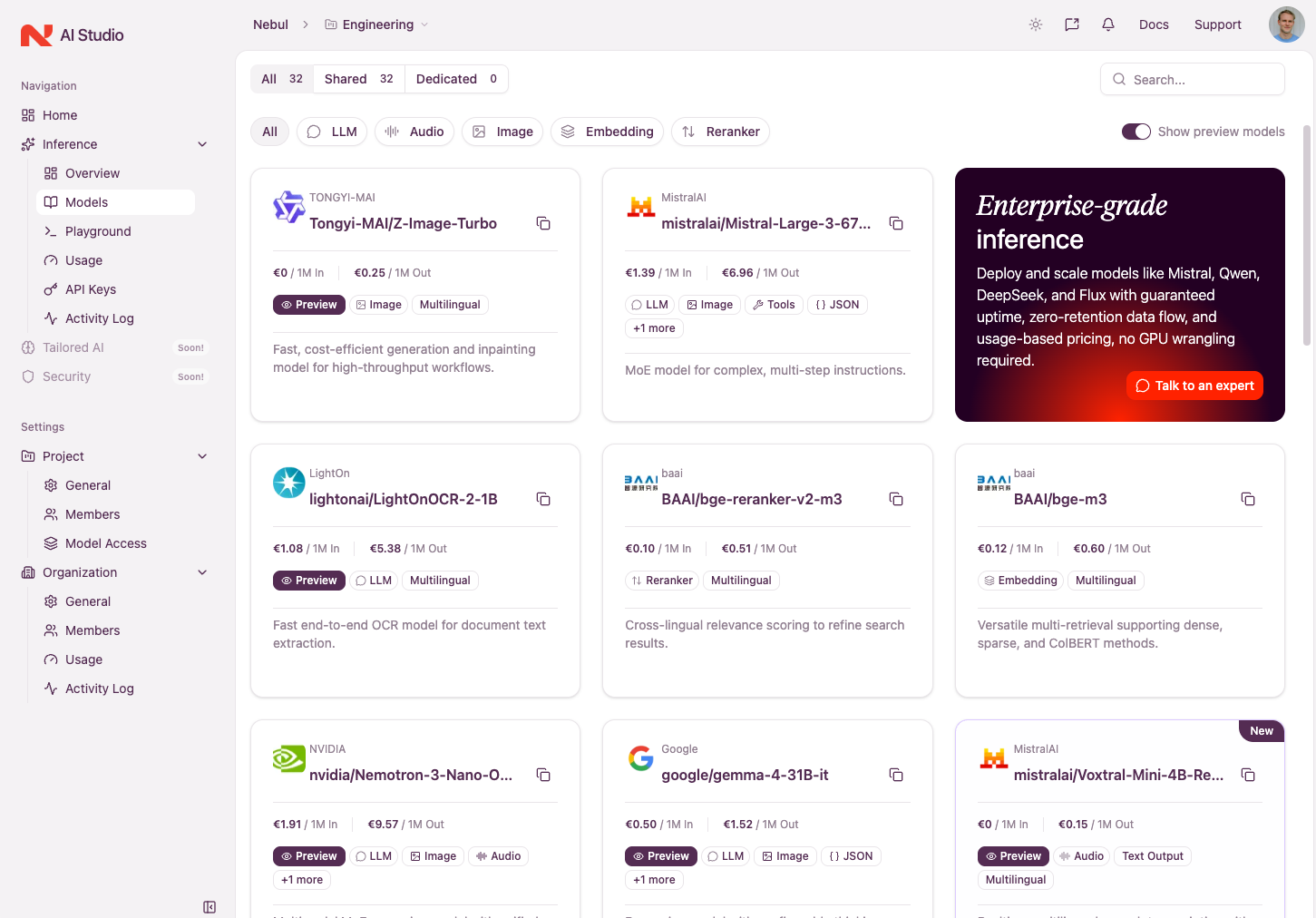
Project
Usually named for something meaningful to you (prod, team-alpha, experiments). Each project gets its own:
- Members (from your organization's roster)
- Model access (which models keys in this project may call)
- API keys, all tied to this project
- Usage and activity, rolled up per project, with organization‑wide roll‑ups available to organization owners.
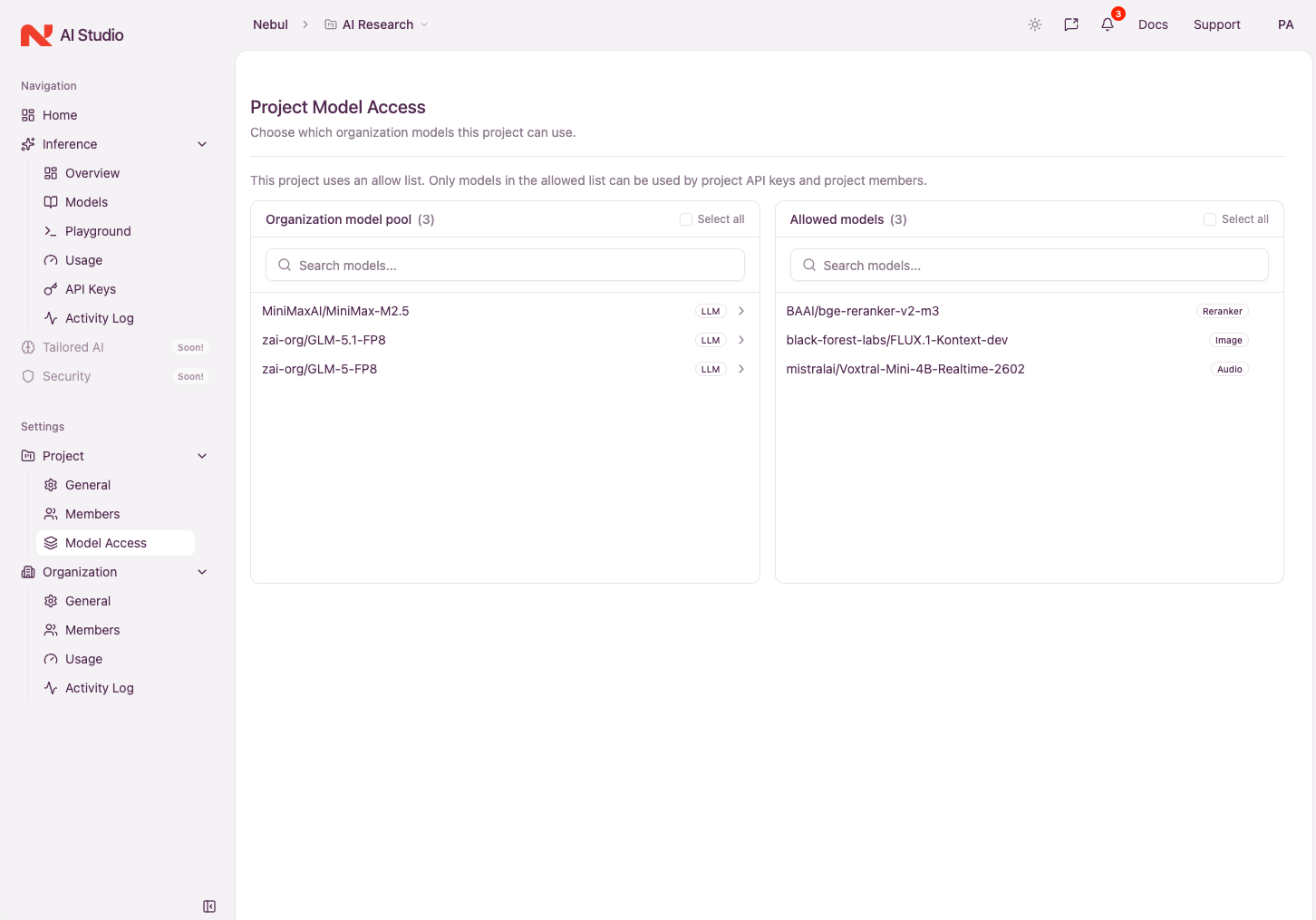
Archiving a project turns off keys and hides it from day‑to‑day navigation; historic numbers still exist for operators who need them.
Why it matters day to day
- Keys don't bleed across projects. A model you can use in Project A doesn't magically apply to Project B unless someone configured it there too.
- Organization owners get the bird's-eye view across projects; everyone else sees what they're assigned to — see Roles & access.
- Usage & activity lines up with the same project boundaries you use when you integrate.