Welcome to AI Studio
This documentation covers AI Studio, Nebul’s web app for organizations, projects, API keys, model access, and dataset generation. The pages here explain how your workspace is organized, who can change what, and how usage appears in the product. For HTTP details (endpoints, parameters, and request shapes), see Inference API — Quick Start and Chat Completions.
If something is unclear or missing, use the support portal.
What is AI Studio?
AI Studio is Nebul’s self‑service hub for day‑to‑day AI work: invite teammates, use projects to separate environments or teams, issue API keys, see which models apply to each project, monitor usage and spend, generate training datasets with Data Designer, fine-tune models on your data, and screen incoming prompts with Guardrails.
Open studio.nebul.io and sign in with your Nebul account (the same credentials as the rest of Nebul). Your company appears as one organization in Studio. Use Projects in the sidebar to pick the active project; most of the sidebar is scoped to that project.
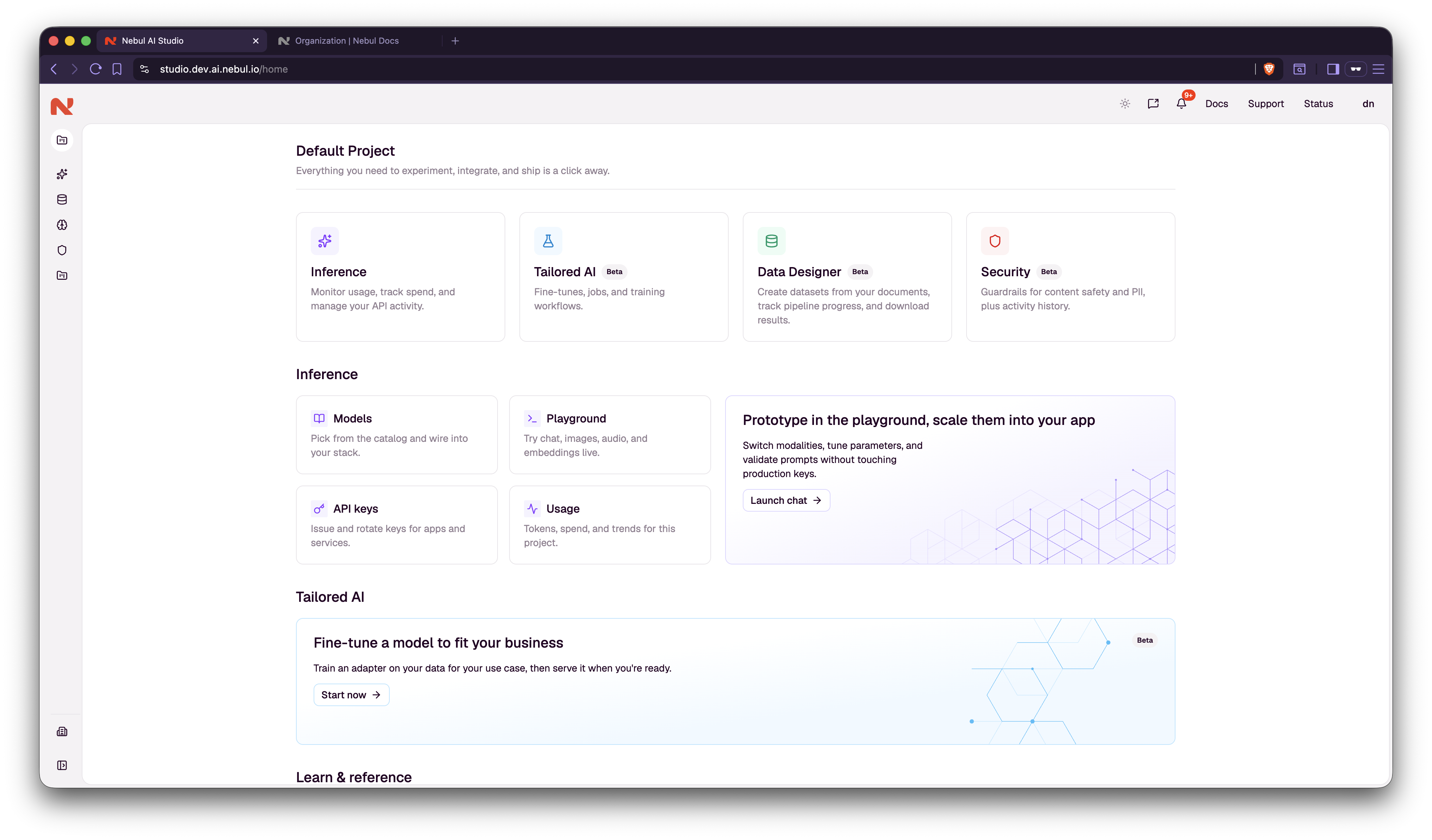
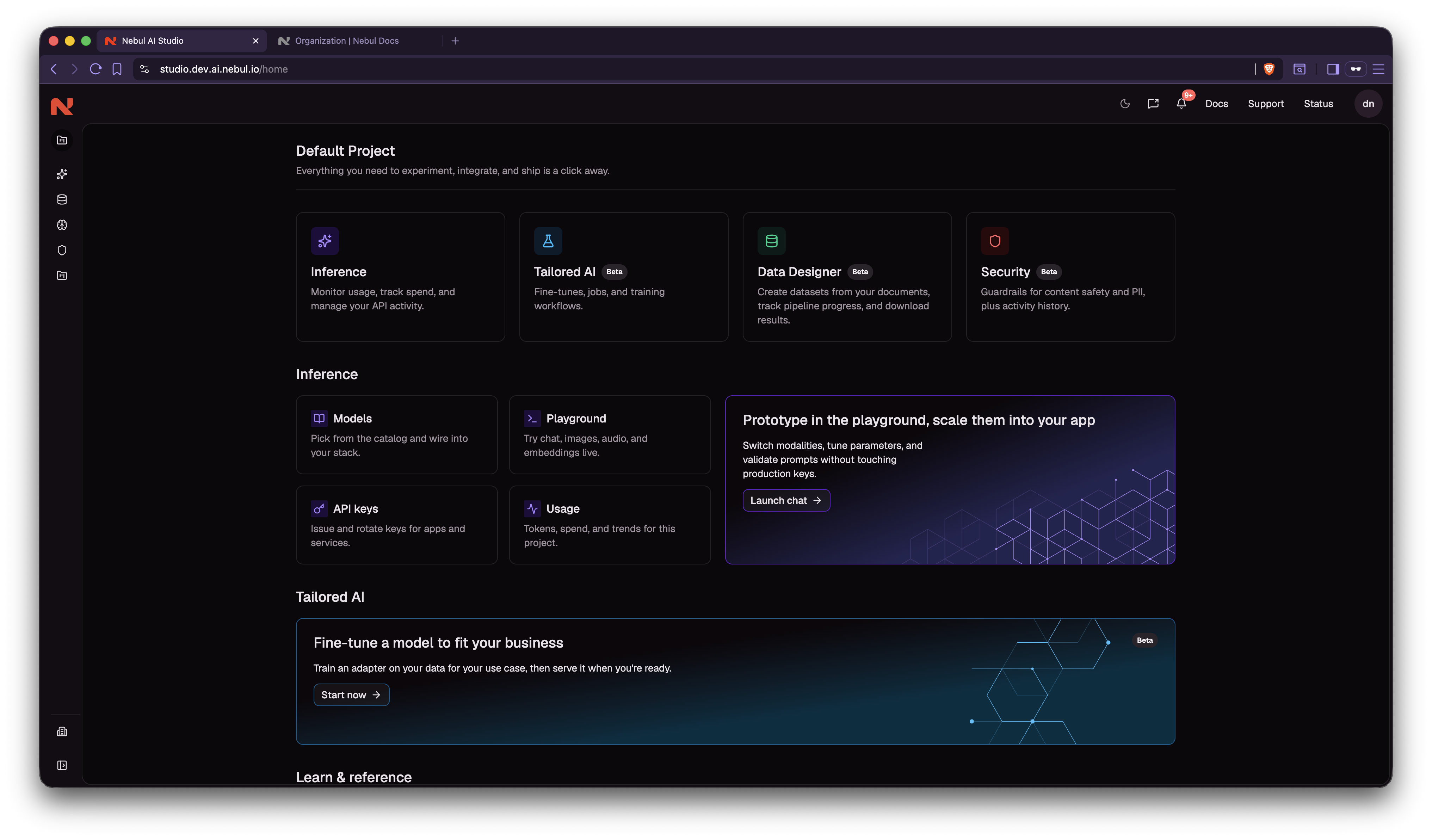
Getting started
Activate your account
You’ll receive an invitation email from studio@nebul.io with a link to activate your Studio access. Complete activation before your first sign-in so you’re correctly joined to your organization.
Sign in and select a project
- Open studio.nebul.io and sign in.
- Open Projects in the sidebar to see which project is active.
- Open the picker to view every project you can access, then choose the one you want to work in. Everything described below assumes the correct project is selected.
Send your first API request (Playground)
Explore models for the active project on the Model catalog page. Browse the cards, then click a model to open its detail view (capabilities, identifiers, and other metadata you’ll need later).
Then:
- Open the Playground.
- Click Generate temporary API key. Studio creates a key that expires automatically after 24 hours.
- After the key is created, available models for the project are loaded into the Playground picker.
- Choose a model (for example Mistral Large 3), compose a short chat message, and send it.
You’ve completed your first inference request. That traffic runs in Nebul’s datacenter in the Netherlands, scoped to your organization.
Programmatic API access
For integrations and automation, create a long-lived key instead of relying on Playground temps:
- Go to API keys (in the sidebar for your project context).
- Click Create API key. You need permission to issue keys on that project; if the option isn’t available, ask an organization owner to add you to a project or create one for you.
- Enter a descriptive name and set an expiration date soon enough that rotated keys stay on a sane schedule. You can always create replacements.
To call the API from code or the shell:
- Open the Model catalog, click the model card you want, and use the example in cURL or Python shown there; or
- Jump straight to Chat Completions for full request parameters and semantics.
What’s covered in Studio docs
| Topic | Page |
|---|---|
| Billing, org roles, and org-wide settings | Organization |
| Projects, keys, model access, usage, and budgets | Projects |
| Turn documents into a training dataset | Data Designer |
| Train a LoRA adapter on your dataset | Fine-tuning |
| Serve a finished adapter from the model catalog | Serving a fine-tuned model |
| Screen prompts against safety categories | Guardrails |
New to the HTTP API overall? Start with Inference API — Quick Start.