Projects
A project is where day-to-day AI work is grouped in AI Studio. Each project has its own members, API keys, model access, usage, and optional monthly budget.
Projects belong to your organization. Use them to separate environments (prod, staging, experiments), teams, or clients. The active project is what the sidebar and dashboards scope to. Switch it from Projects in the sidebar anytime you belong to more than one.
What a project contains
Each project is a self-contained workspace:
- Members — users you invite to the project, as a member or an owner
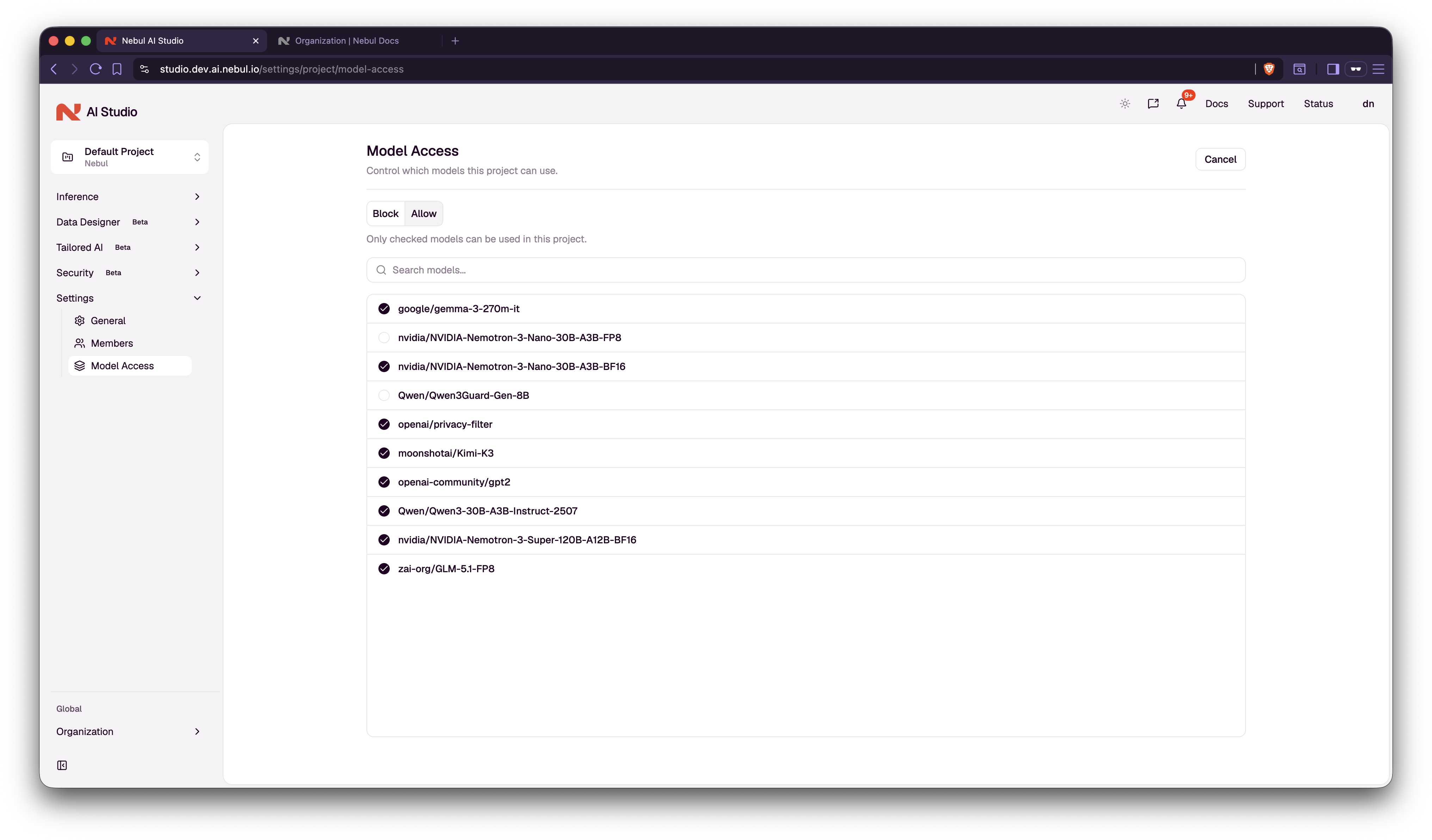
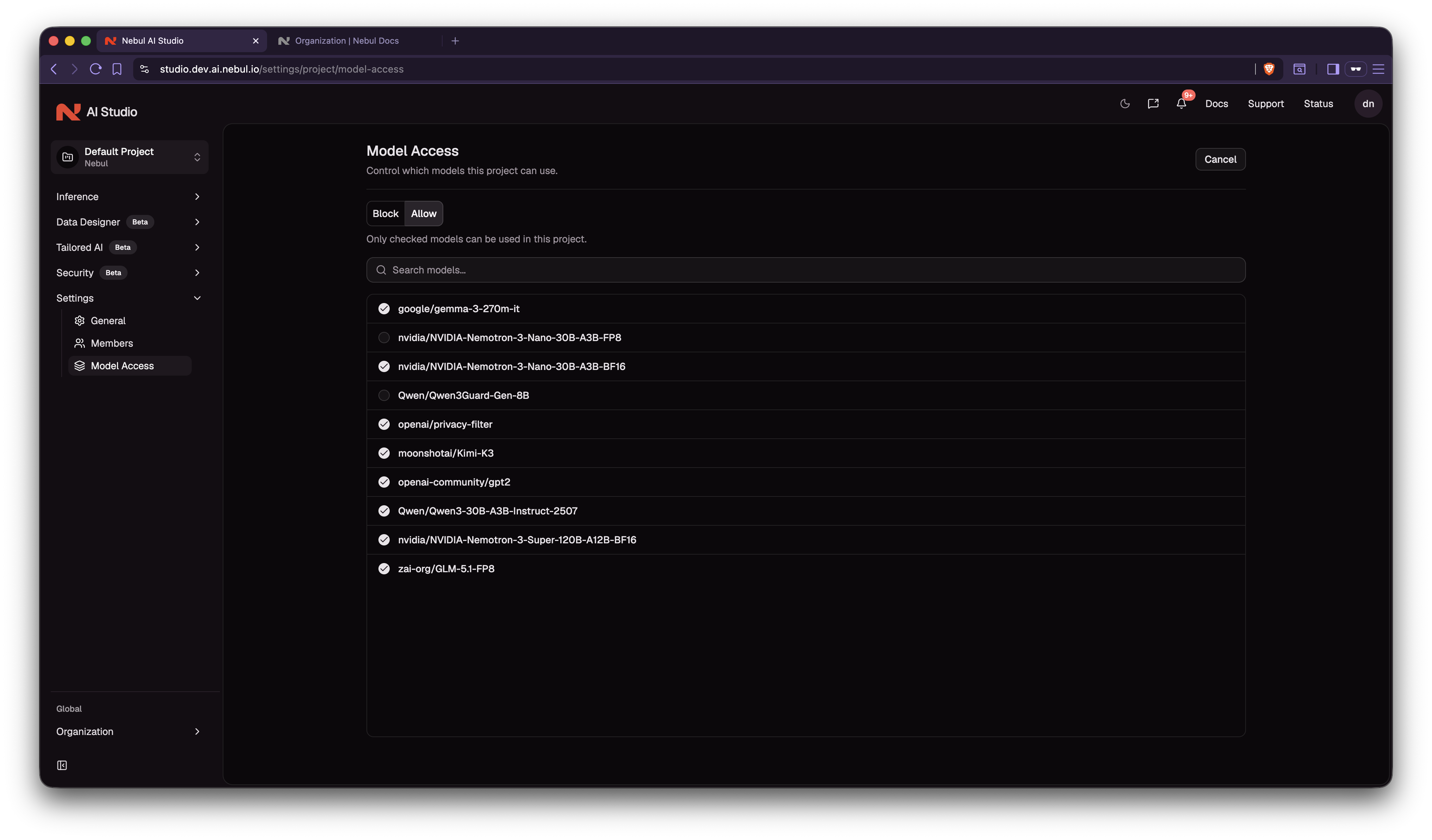
- Model access — which models API keys in this project are allowed to call
- API keys — all keys belong to exactly one project and inherit its model access
- Usage and activity — request logs and spend roll up per project
Keys and model access do not bleed across projects. A model enabled in Project A does not apply to Project B unless someone configured it there too.
Project roles
Set per person under Settings → Project → Members (and during invite flows that add people to a project).
| Role | What it means |
|---|---|
| Owner | Manages this project: teammates, model access, rename, archive, and budget. Can do everything a member can. |
| Member | Normal build and operate work: create API keys, call models, view dashboards for this project. Cannot change project members, model access, or budget unless they are also an owner. |
| Viewer | Read-oriented access to project data; how prominently this role appears in the UI may vary. |
Organization owners always have full access to every project, whether or not they appear on that project's member list.
Quick reference
| Organization owner | Project owner | Project member | |
|---|---|---|---|
| Day-to-day work inside a joined project | ✓ | ✓ | ✓ |
| Manage project people, model access, and budget | ✓ | ✓ | — |
| Create or archive projects, org-wide billing and analytics | ✓ | — | — |
Usage and cost
Qualified inference traffic tied to your API keys automatically appears in AI Studio — you do not toggle metering on anywhere.
| Where in Studio | What it shows |
|---|---|
| Inference → Activity log | Request trail for the active project — when, which key, which model, outcome, and volume |
| Inference → Usage | Aggregates for a period, often split by model or key — scoped to the active project |
| Settings → Organization → Usage (organization owners) | Compare projects side by side at organization scale |
Usage totals may include estimated spend depending on your subscription. Treat these as indicators, not your invoice. Failures (4xx/5xx) usually still appear in activity logs, which helps when debugging integration issues.
For organization-wide billing and cost roll-ups, see Organization.
Monthly project budget
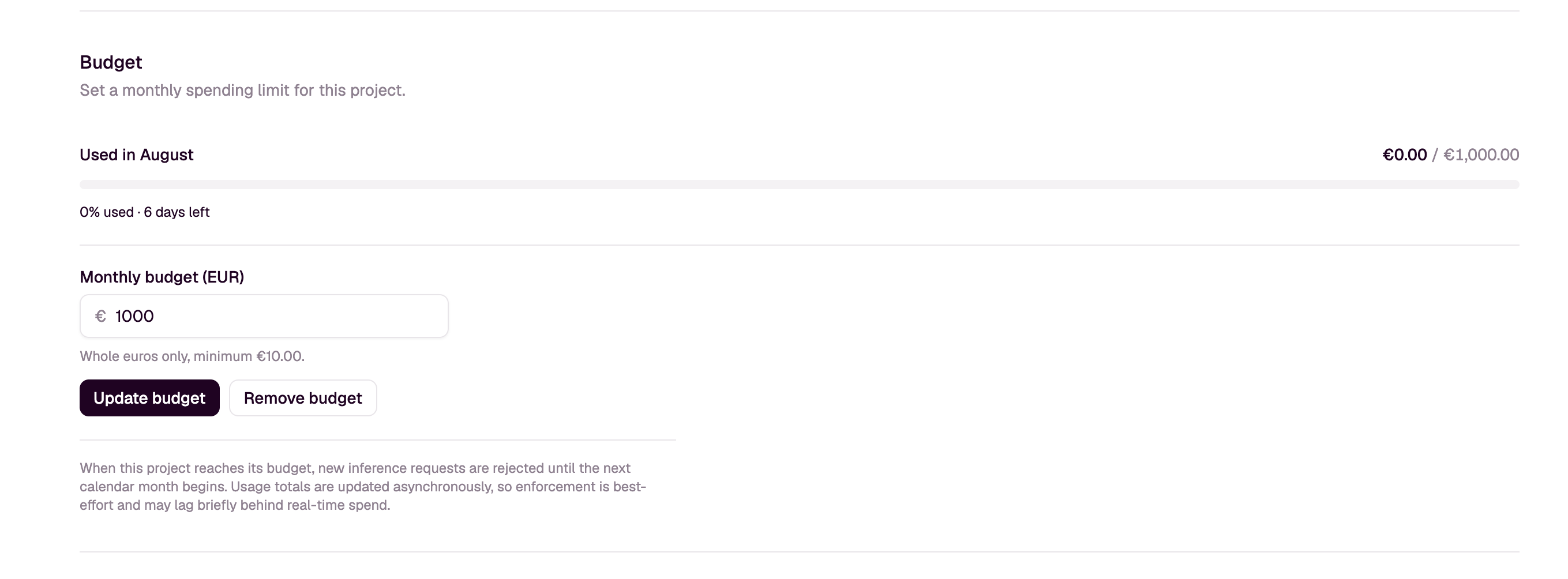
Project owners and organization owners can set a monthly spending limit for a project under Settings → Project → Budget. This helps prevent accidental overspending by capping how much a project can consume in a calendar month.

- Usage resets at the start of each calendar month.
- Budgets are set in whole euros, with a minimum of €10.00.
- Leave budget unset for unlimited usage within your organization's subscription.
When a project's budget limit is reached, further API requests using keys belonging to that project are denied with HTTP status code 429.
Budget limits are enforced on a best-effort basis. Usage totals are updated asynchronously, so there may be a delay between billed requests and the consumption shown in Studio. A project can exceed its budget until aggregated usage reflects recent activity.
See Organization for how organizations, billing, and projects fit together.